Change DNS Information
If you purchased a domain name from the Truepath domain store and you now wish to host that name with Truepath, here are the steps to do so.
Step 1:
How can I change my DNS information to host with Truepath?
To change DNS information
Go to this link http://store.truepath.com (or http://manage.opensrs.net if you didn’t buy your domain at store.truepath.com)
- Click Manage, and log in to your account.
- Beside the domain whose DNS you want to change, click DNS.
- Replace the existing information with Truepath’s name servers
ns1.truepath.com
ns2.truepath.com
ns3.truepath.com
Please remove all existing name server entries. There should be no other name servers listed.
- Click Save. Your new DNS information is automatically entered, if it is verified to be valid.
Please allow 24 – 48 hours for your change to propagate throughout the Internet.
Step 2:
How do I add the domain name to my hosting plan?
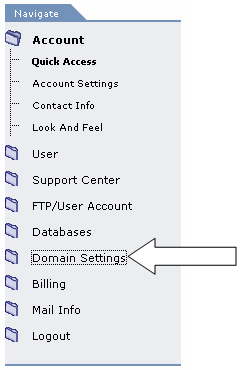
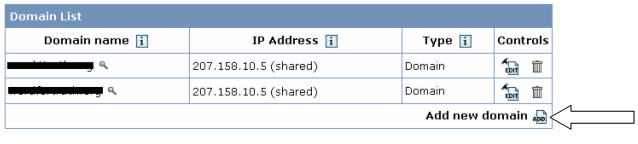
- In your control panel under “Domain Settings” select “Add new domain”
- Scroll down the page to where it says “Hosting Existing Site”
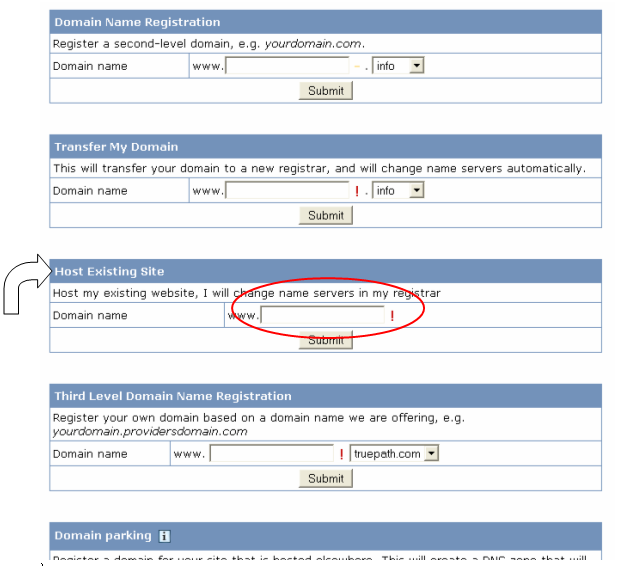
- Type in your domain name (omitting the www.) and click Submit